Body
The Windows Hello feature is now available on TWU Microsoft Windows devices. Windows Hello enables users to sign into their TWU provided computer with a PIN rather than user name and password.
You can use the Settings app to configure and manage Windows Hello.
-
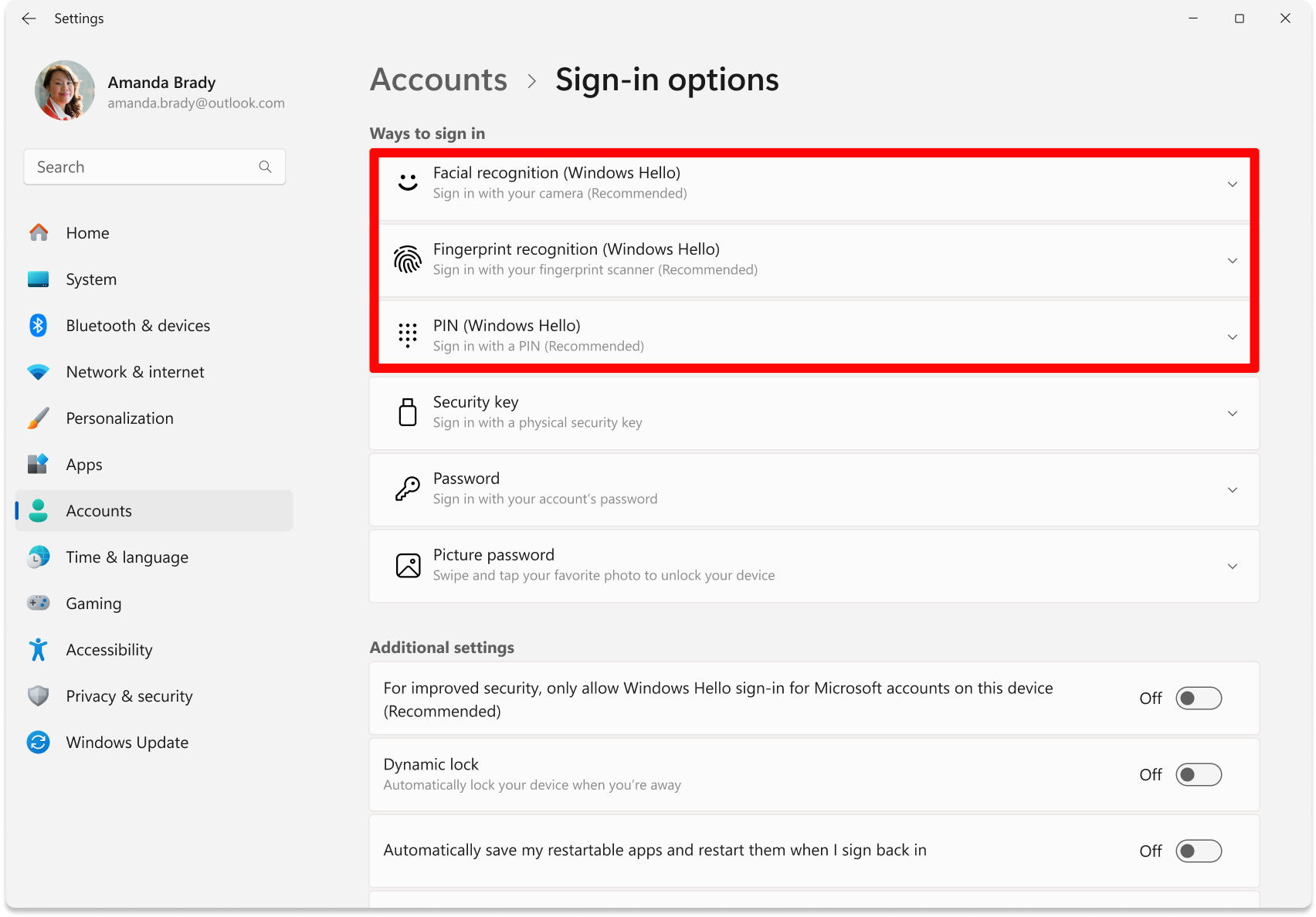
In the Settings app on your Windows device (click start menu and type Settings), select Accounts > Sign-in options
-
Under Ways to sign in, you have three choices to sign in with Windows Hello, however currently PIN is the only available option:
- Select PIN (Windows Hello) to set up sign-in with a PIN.
-
Choose PIN (Windows Hello) and select Set up.
-
Follow the instructions to complete the configuration of Windows Hello.
Sign-in experience
After setting up your sign in method, reboot your computer and log in normally using your username and password.
Once you have logged in after the reboot, Windows Hello can be used for subsequent sign-ins. You can use your configured PIN instead of entering your password.
Please note: After each reboot, you will need to enter your username and password once. After that initial sign-in, Windows Hello will be available for subsequent sign-ins.
If you need assistance please contact the TWU Service Desk at 940-898-3971